SEO Trends
SEO Trends
How to Add Social Media to Google Search Console and Track Their Performance
How to Add Social Media to Google Search Console and Track Their Performance
Learn how Google Search Console handles social media, what platform properties can track, and how to measure social performance alongside your website's organic search data.

Shraddha Thuwal
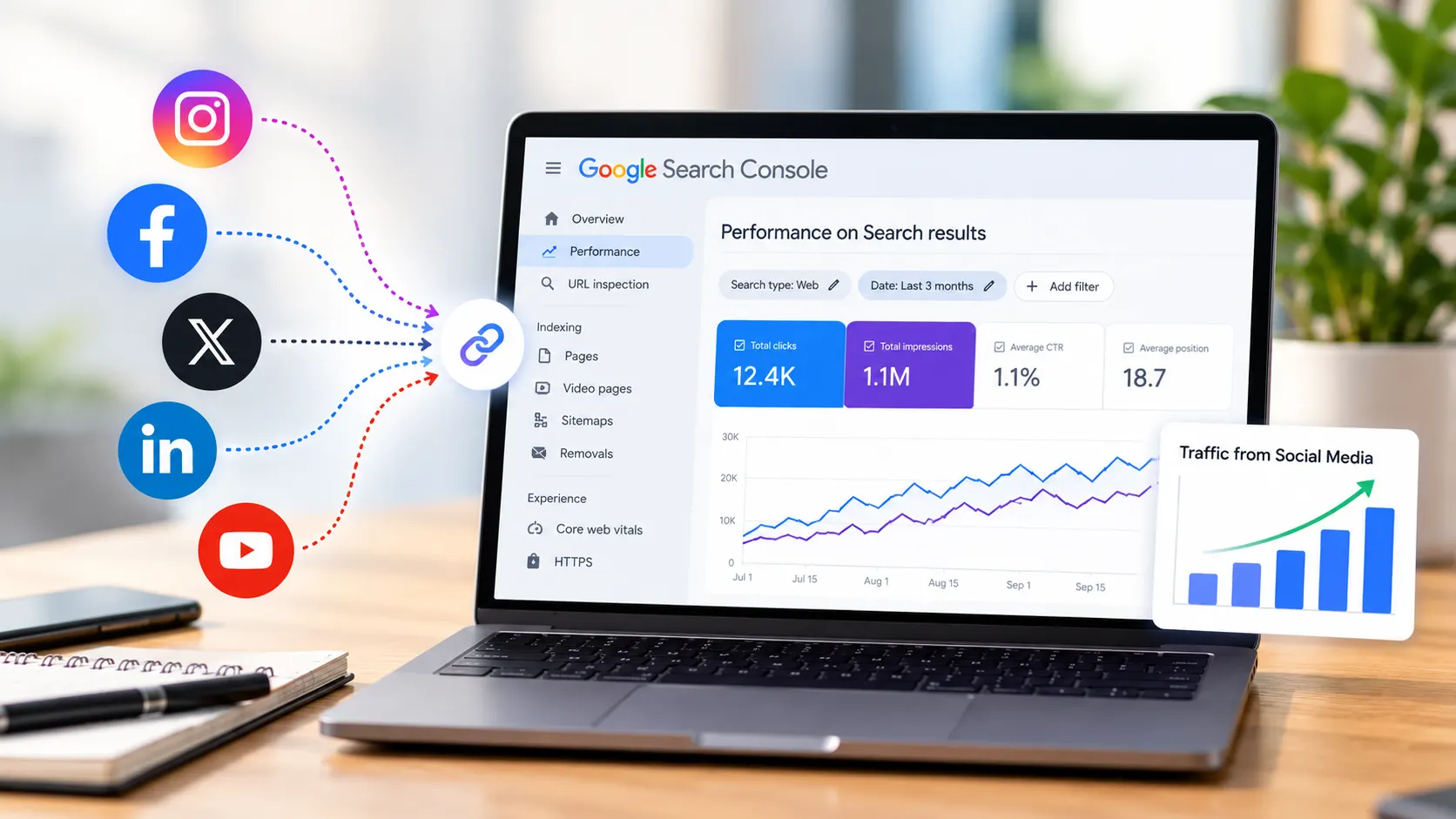
To add social media to Google Search Console, open the property dropdown, click Add property, pick Instagram, TikTok, X or YouTube, and approve the login prompt for that account. Data appears within a few days. You then track clicks, impressions, queries and countries in the Insights, Performance and Achievements reports.
Key Takeaways
Google Search Console supports Instagram, TikTok, X and YouTube as property types.
These properties measure how your social content performs in Google results. They do not report views or likes inside the platforms.
Tracking starts at connection, so older performance is not imported.
Page filters let you compare Shorts against long videos and Reels against posts.
Social posts and videos that rank in Google also feed AI search visibility, which Vryse tracks alongside SEO.
What Are Google Search Console Platform Properties
Google Search Console platform properties are property types that connect a social account to Search Console. Until July 2026, a property meant a website. Now an Instagram, TikTok, X or YouTube account can sit in the same dropdown as your domain.
Google states that these properties show how your content performs on Google Search only. A YouTube property will not show YouTube search views. A TikTok property will not show TikTok feed impressions. Native platform analytics still own that data.
The use case is specific. A Reel, a Short or an X post can rank in Google results for a query. Google Search Console social media tracking shows which queries trigger those results and how many people click.
How to Add Social Media to Google Search Console
Follow these steps to add social media to GSC for each account. Repeat the process for every platform and every account you manage.
Open Search Console: Sign in at search.google.com/search-console with the Google account you use for your website.

Open the property dropdown: Click the property name at the top left, then click Add property. The welcome screen also offers this option.
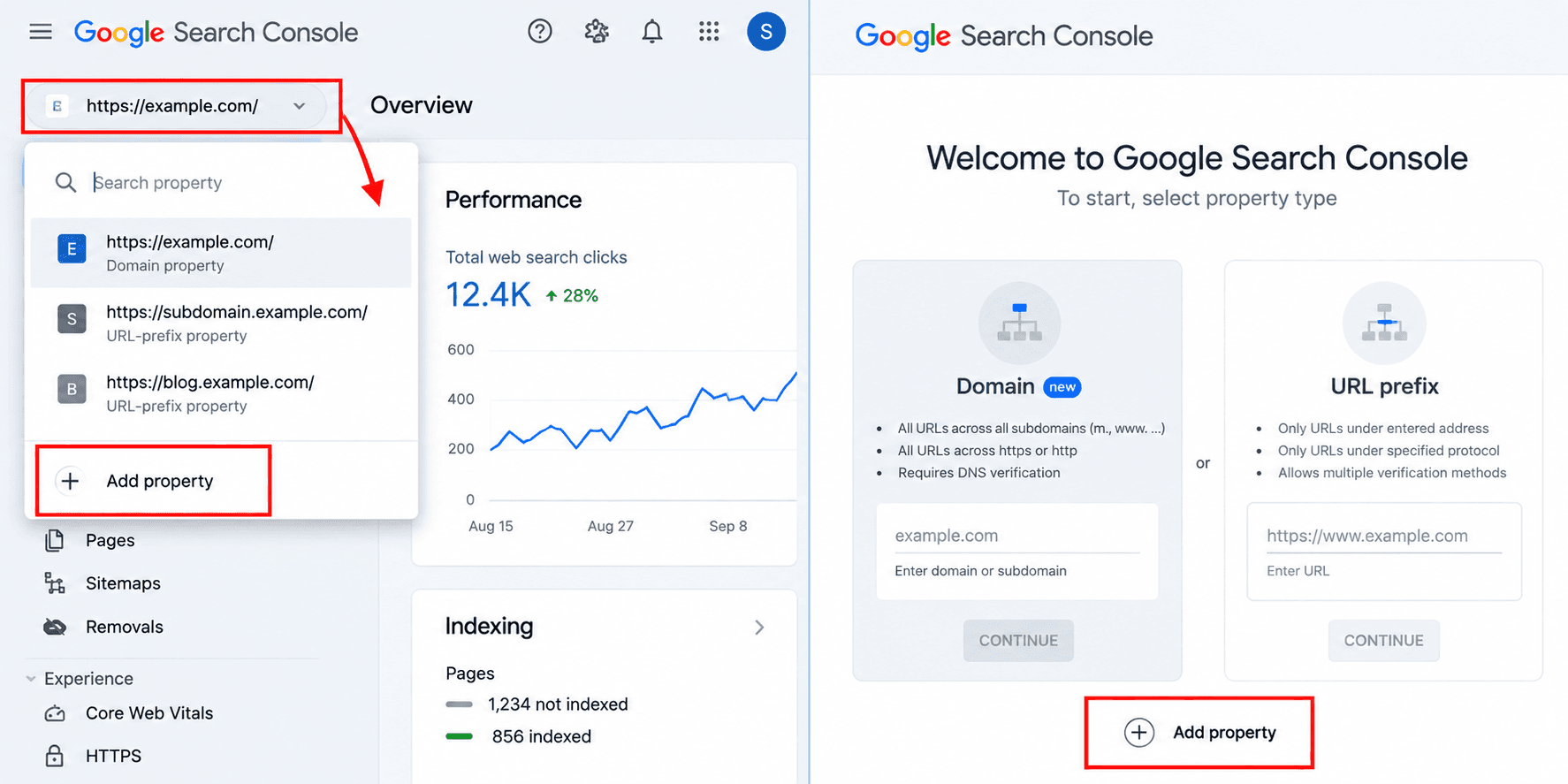
Pick a platform: Four options appear: Instagram, TikTok, X and YouTube.

Click Add: A popup opens asking you to approve Google's access to the account.

Sign in to the account: You must be able to log in to that social account in the same browser. Pasting a profile link does not work. Google needs proof that you own the account.

Approve and continue: Walk through the prompts until the property is verified.
Open the new property: Select it from the dropdown to start viewing reports.
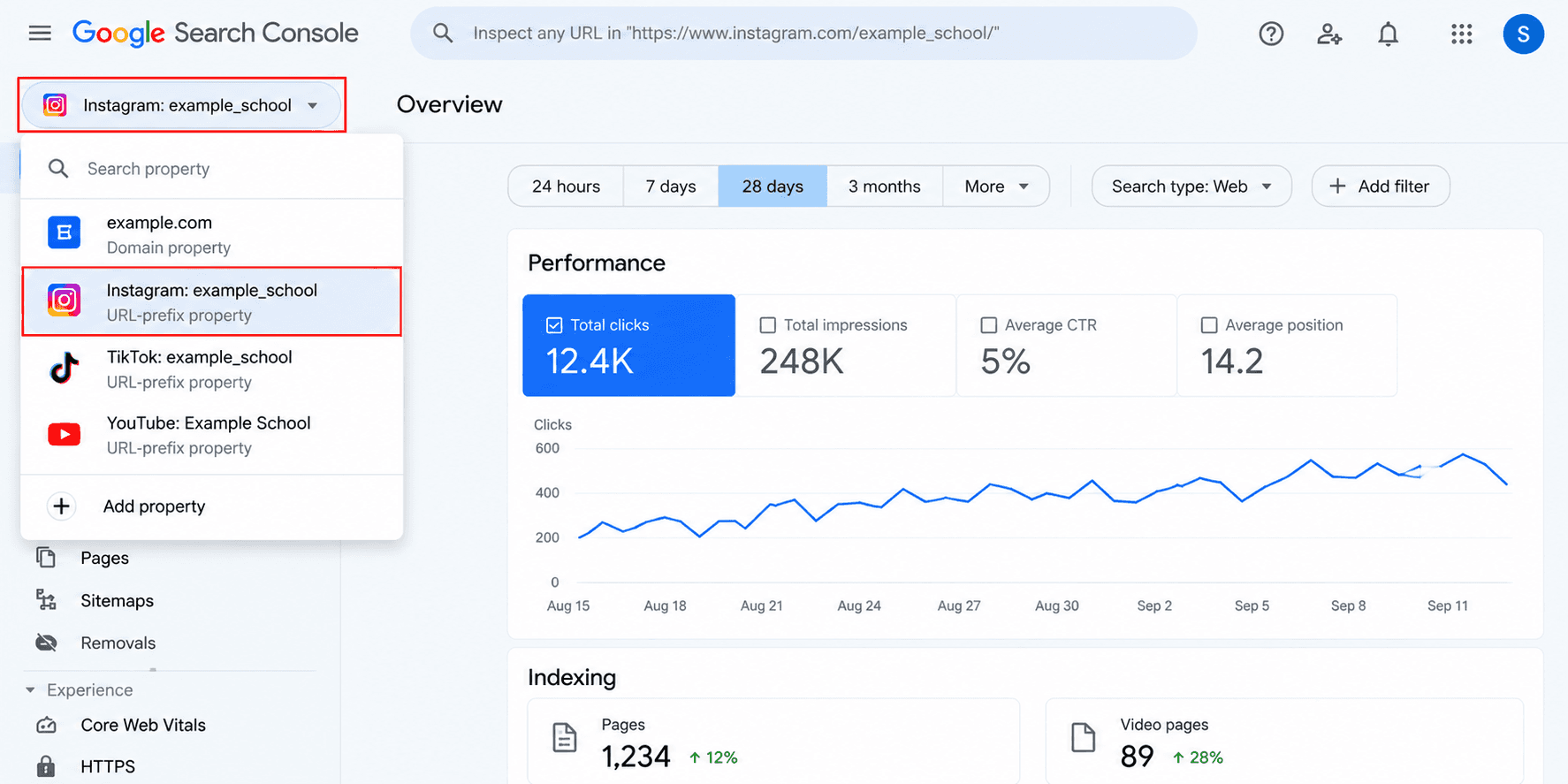
Add Social Media to GSC: Requirements by Platform
Platform | What to prepare |
YouTube | Sign in to Search Console with the same Google account that owns the channel |
Be logged in to the account in your browser and approve the access popup | |
TikTok | Be logged in to the account and follow the connection prompts |
X | Be logged in to the account and follow the connection prompts |
The YouTube rule causes most failed connections. If the channel sits under a brand account or a different email, the channel will not appear in the list. Switch to the owning Google account first.
Shortcut: Claim Your Search Profile
If you have already claimed your Google Search profile, verified accounts are added as properties automatically. Check the dropdown before connecting anything manually.
How Long Does Data Take to Appear
Google says it takes a few days to collect and process metrics after setup. Search Console may show a message asking for 48 hours. One tester using a YouTube channel saw data in under 48 hours, but plan for several days.
Tracking is not retroactive. A property added today starts from zero today. Connect every account now, even if you do not plan to review reports this month.
Ownership is checked periodically. If an external login expires, access to the property pauses until you verify again. Once you verify again, existing reports return and the gap does not leave missing data.
How to Track Social Media in Google Search Console
To track social media in Google Search Console, use three reports in the property: Insights for a quick read, Performance for detailed analysis, and Achievements for milestones. The default date range is 28 days in all of them.
Insights Report
Insights is the first screen after you open a platform property. It answers four questions.
Traffic trend: Total clicks from Google Search across the selected range.
Top content: The posts or videos driving the most clicks.
Queries: The search terms that surface your channel or content, with trending up and trending down groups.
Countries: Where those searchers are located.
The summary card at the top counts clicks across all Google Search sections. The lists below it focus on web search results. Totals and lists will not always match, so do not treat the gap as an error.
Performance Report
Performance is where analysis happens. It shows clicks, impressions, click through rate and average position. You can filter by query, page, country, device and date, and view Google Search, Discover and Google News traffic.
Click any query to see which videos or posts earn the most clicks and impressions for it. This shows which content owns a keyword and which content competes with itself.
Achievements Report
Achievements tracks milestones and click growth. Use it for reporting to clients or leadership, since it summarises growth without manual date comparisons.
Filters That Turn Data Into Decisions
Filters are the main reason to add social media to GSC. Each one answers a content question.
Page filter and compare mode: Click Add filter, choose Page, then Compare. Enter two URL patterns and click Apply. Search Console shows both sets side by side.
Platform | Pattern A | Pattern B | Question it answers |
YouTube | /watch | /shorts/ | Do long videos or Shorts earn more Google clicks |
/p/ | /reels/ | Do posts or Reels earn more Google clicks | |
YouTube | playlist | None | How do playlists perform in search |
24 hour filter: Check new uploads a day after publishing. Rising queries show how Google is matching the content to searches.
Query groups: Review the top, trending up and trending down groups to see which topics gain or lose search demand.
Device and country filters: Split mobile from desktop, and compare countries to see whether an Indian audience or an overseas one drives clicks.
Annotations: Add a note when you change a title, caption or hashtag. Later, you can see whether the change moved impressions.
A Weekly Workflow for Google Search Console Social Media Reports
Use this routine to track social media in Google Search Console and turn reports into content decisions.
Open Insights for each property: Note total clicks and the top three pieces of content.
Check the trending up queries: Add them to your content calendar as video or post topics.
Run a format comparison in Performance: Compare Shorts with long videos, or Reels with posts, for the last 28 days.
Review new uploads with the 24 hour filter: Spot queries that appear unexpectedly.
Rework weak content: Update titles, captions and hashtags on pieces with high impressions and low clicks.
Pin or promote older winners: Content gaining queries deserves a repost or a pinned position.
Record the numbers: Save clicks, impressions and top queries in a shared sheet so month to month changes stay visible.
Example: a YouTube channel finds that Shorts earn 40 impressions per video and long videos earn 400 for the same topic cluster. The team shifts effort to long form on those topics and keeps Shorts for new uploads, where the 24 hour filter shows early traction.
Limitations of Google Search Console Platform Properties
Google Search only: No platform views, likes, follower counts or watch time.
No history: Nothing before the connection date appears.
Four platforms: LinkedIn, Facebook, Threads and Reddit are not supported.
Delayed start: Data takes days to appear after setup.
Login expiry: An expired external login pauses access until you verify again.
Use Google Search Console social media data alongside native analytics. Native tools explain on platform behaviour. Search Console explains Google behaviour.
How Social Search Data Fits Into a GEO Program
Content that ranks in Google is also more likely to be retrieved by AI systems. A video that wins a Google query gives ChatGPT, Gemini and Perplexity a stronger source to draw from. Our guide to AEO vs SEO explains how both surfaces reward the same content foundation.
Vryse runs SEO and GEO as one engagement, with a dashboard that tracks Google performance and prompt visibility across AI platforms. Search Console platform data covers the Google side of your social content. The AI SEO optimisation guide and the guide to conversational search optimisation show how to structure that content for answer engines.
Plans start at ₹20,000 per month for Build, ₹55,000 for Scale and ₹85,000 for Accelerate. Compare the plans to see which tier fits your content volume.
To add social media to Google Search Console, open the property dropdown, click Add property, pick Instagram, TikTok, X or YouTube, and approve the login prompt for that account. Data appears within a few days. You then track clicks, impressions, queries and countries in the Insights, Performance and Achievements reports.
Key Takeaways
Google Search Console supports Instagram, TikTok, X and YouTube as property types.
These properties measure how your social content performs in Google results. They do not report views or likes inside the platforms.
Tracking starts at connection, so older performance is not imported.
Page filters let you compare Shorts against long videos and Reels against posts.
Social posts and videos that rank in Google also feed AI search visibility, which Vryse tracks alongside SEO.
What Are Google Search Console Platform Properties
Google Search Console platform properties are property types that connect a social account to Search Console. Until July 2026, a property meant a website. Now an Instagram, TikTok, X or YouTube account can sit in the same dropdown as your domain.
Google states that these properties show how your content performs on Google Search only. A YouTube property will not show YouTube search views. A TikTok property will not show TikTok feed impressions. Native platform analytics still own that data.
The use case is specific. A Reel, a Short or an X post can rank in Google results for a query. Google Search Console social media tracking shows which queries trigger those results and how many people click.
How to Add Social Media to Google Search Console
Follow these steps to add social media to GSC for each account. Repeat the process for every platform and every account you manage.
Open Search Console: Sign in at search.google.com/search-console with the Google account you use for your website.
Open the property dropdown: Click the property name at the top left, then click Add property. The welcome screen also offers this option.
Pick a platform: Four options appear: Instagram, TikTok, X and YouTube.
Click Add: A popup opens asking you to approve Google's access to the account.
Sign in to the account: You must be able to log in to that social account in the same browser. Pasting a profile link does not work. Google needs proof that you own the account.
Approve and continue: Walk through the prompts until the property is verified.
Open the new property: Select it from the dropdown to start viewing reports.
Add Social Media to GSC: Requirements by Platform
Platform | What to prepare |
YouTube | Sign in to Search Console with the same Google account that owns the channel |
Be logged in to the account in your browser and approve the access popup | |
TikTok | Be logged in to the account and follow the connection prompts |
X | Be logged in to the account and follow the connection prompts |
The YouTube rule causes most failed connections. If the channel sits under a brand account or a different email, the channel will not appear in the list. Switch to the owning Google account first.
Shortcut: Claim Your Search Profile
If you have already claimed your Google Search profile, verified accounts are added as properties automatically. Check the dropdown before connecting anything manually.
How Long Does Data Take to Appear
Google says it takes a few days to collect and process metrics after setup. Search Console may show a message asking for 48 hours. One tester using a YouTube channel saw data in under 48 hours, but plan for several days.
Tracking is not retroactive. A property added today starts from zero today. Connect every account now, even if you do not plan to review reports this month.
Ownership is checked periodically. If an external login expires, access to the property pauses until you verify again. Once you verify again, existing reports return and the gap does not leave missing data.
How to Track Social Media in Google Search Console
To track social media in Google Search Console, use three reports in the property: Insights for a quick read, Performance for detailed analysis, and Achievements for milestones. The default date range is 28 days in all of them.
Insights Report
Insights is the first screen after you open a platform property. It answers four questions.
Traffic trend: Total clicks from Google Search across the selected range.
Top content: The posts or videos driving the most clicks.
Queries: The search terms that surface your channel or content, with trending up and trending down groups.
Countries: Where those searchers are located.
The summary card at the top counts clicks across all Google Search sections. The lists below it focus on web search results. Totals and lists will not always match, so do not treat the gap as an error.
Performance Report
Performance is where analysis happens. It shows clicks, impressions, click through rate and average position. You can filter by query, page, country, device and date, and view Google Search, Discover and Google News traffic.
Click any query to see which videos or posts earn the most clicks and impressions for it. This shows which content owns a keyword and which content competes with itself.
Achievements Report
Achievements tracks milestones and click growth. Use it for reporting to clients or leadership, since it summarises growth without manual date comparisons.
Filters That Turn Data Into Decisions
Filters are the main reason to add social media to GSC. Each one answers a content question.
Page filter and compare mode: Click Add filter, choose Page, then Compare. Enter two URL patterns and click Apply. Search Console shows both sets side by side.
Platform | Pattern A | Pattern B | Question it answers |
YouTube | /watch | /shorts/ | Do long videos or Shorts earn more Google clicks |
/p/ | /reels/ | Do posts or Reels earn more Google clicks | |
YouTube | playlist | None | How do playlists perform in search |
24 hour filter: Check new uploads a day after publishing. Rising queries show how Google is matching the content to searches.
Query groups: Review the top, trending up and trending down groups to see which topics gain or lose search demand.
Device and country filters: Split mobile from desktop, and compare countries to see whether an Indian audience or an overseas one drives clicks.
Annotations: Add a note when you change a title, caption or hashtag. Later, you can see whether the change moved impressions.
A Weekly Workflow for Google Search Console Social Media Reports
Use this routine to track social media in Google Search Console and turn reports into content decisions.
Open Insights for each property: Note total clicks and the top three pieces of content.
Check the trending up queries: Add them to your content calendar as video or post topics.
Run a format comparison in Performance: Compare Shorts with long videos, or Reels with posts, for the last 28 days.
Review new uploads with the 24 hour filter: Spot queries that appear unexpectedly.
Rework weak content: Update titles, captions and hashtags on pieces with high impressions and low clicks.
Pin or promote older winners: Content gaining queries deserves a repost or a pinned position.
Record the numbers: Save clicks, impressions and top queries in a shared sheet so month to month changes stay visible.
Example: a YouTube channel finds that Shorts earn 40 impressions per video and long videos earn 400 for the same topic cluster. The team shifts effort to long form on those topics and keeps Shorts for new uploads, where the 24 hour filter shows early traction.
Limitations of Google Search Console Platform Properties
Google Search only: No platform views, likes, follower counts or watch time.
No history: Nothing before the connection date appears.
Four platforms: LinkedIn, Facebook, Threads and Reddit are not supported.
Delayed start: Data takes days to appear after setup.
Login expiry: An expired external login pauses access until you verify again.
Use Google Search Console social media data alongside native analytics. Native tools explain on platform behaviour. Search Console explains Google behaviour.
How Social Search Data Fits Into a GEO Program
Content that ranks in Google is also more likely to be retrieved by AI systems. A video that wins a Google query gives ChatGPT, Gemini and Perplexity a stronger source to draw from. Our guide to AEO vs SEO explains how both surfaces reward the same content foundation.
Vryse runs SEO and GEO as one engagement, with a dashboard that tracks Google performance and prompt visibility across AI platforms. Search Console platform data covers the Google side of your social content. The AI SEO optimisation guide and the guide to conversational search optimisation show how to structure that content for answer engines.
Plans start at ₹20,000 per month for Build, ₹55,000 for Scale and ₹85,000 for Accelerate. Compare the plans to see which tier fits your content volume.
Frequently Asked Questions
Frequently Asked Questions
Can I add LinkedIn or Facebook to Google Search Console?
No. Google supports only Instagram, TikTok, X and YouTube.
Can I use this to compare Reels with regular Instagram posts?
Yes. Add a Page filter, choose Compare, and enter /p/ and /reels/. Apply the filter to see both formats side by side.
Will platform properties show my follower count or video views?
No. They show Google Search clicks, impressions, queries and countries only. Use native platform analytics for views and followers.
What happens if my social login expires?
Access to the property pauses until you verify ownership again. After you verify again, existing reports return without missing data.
Related Articles
Related Articles
How to Track Salesforce AppExchange Rankings and Improve Your App’s Visibility
Track your AppExchange rankings, identify keyword opportunities, and optimize your Salesforce listing to improve marketplace visibility, attract qualified buyers, and drive more installs.

Ashish Kamathi, SEO Expert
How to Add Social Media to Google Search Console and Track Their Performance
Learn how Google Search Console handles social media, what platform properties can track, and how to measure social performance alongside your website's organic search data.
Shraddha Thuwal
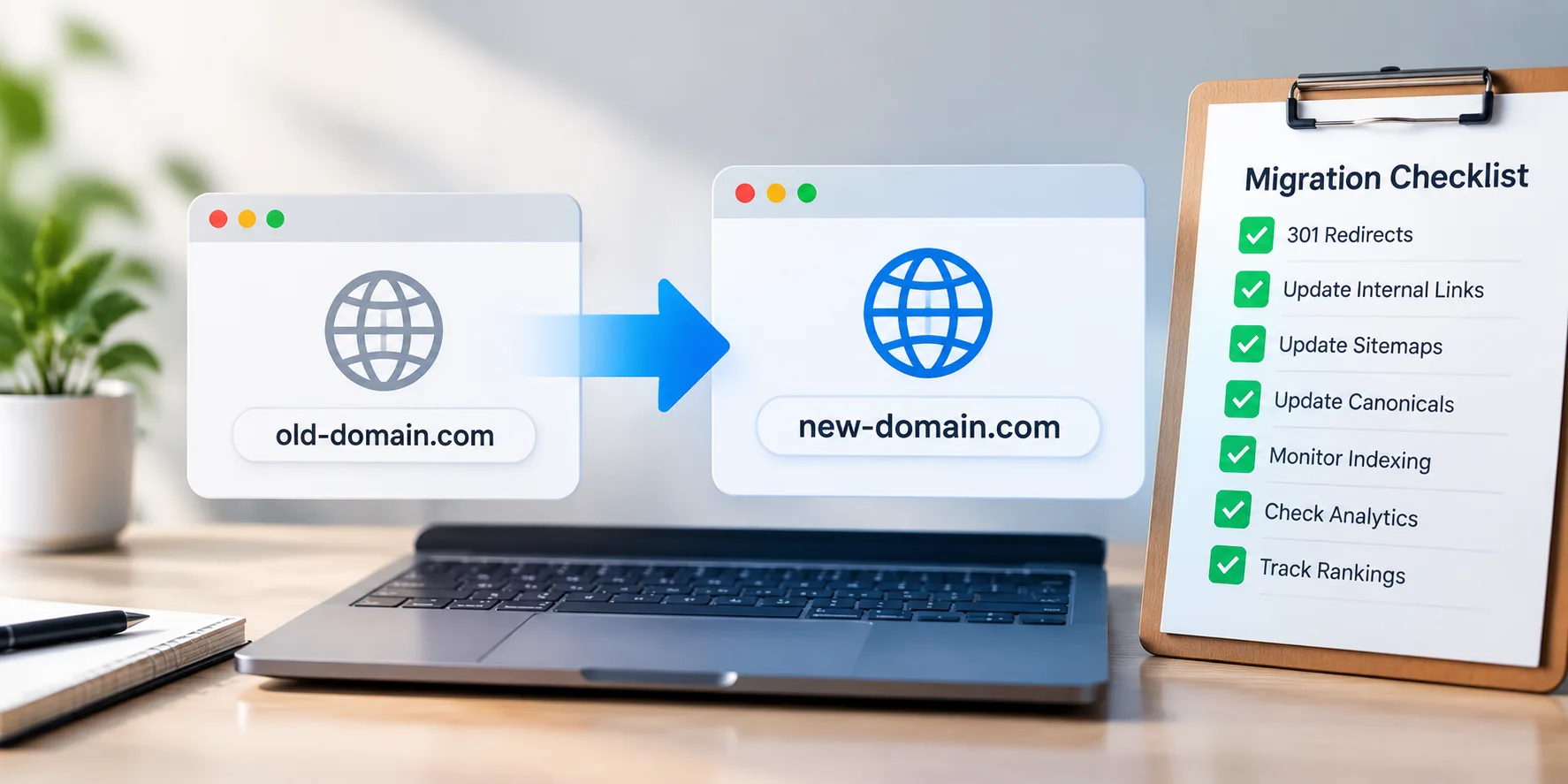
Domain Migration Checklist: A Step-by-Step Guide to Protect Rankings and Traffic
A successful domain migration requires careful SEO planning. Follow this checklist to manage redirects, preserve rankings, protect traffic, and avoid common migration issues.
Shraddha Thuwal
How to Track Salesforce AppExchange Rankings and Improve Your App’s Visibility
Track your AppExchange rankings, identify keyword opportunities, and optimize your Salesforce listing to improve marketplace visibility, attract qualified buyers, and drive more installs.
Ashish Kamathi, SEO Expert
How to Add Social Media to Google Search Console and Track Their Performance
Learn how Google Search Console handles social media, what platform properties can track, and how to measure social performance alongside your website's organic search data.
Shraddha Thuwal
Get Visibility, Everywhere



























Just drop us your email and we’ll reach out
Get Visibility, Everywhere
Just drop us your email and we’ll reach out
Get Visibility, Everywhere
Just drop us your email and we’ll reach out
Our weekly newsletter contains insights from strategies we use for our clients. We don’t spam.
Copyright © 2026 Vryse
Our weekly newsletter contains insights from strategies we use for our clients. We don’t spam.
Copyright © 2026 Vryse